








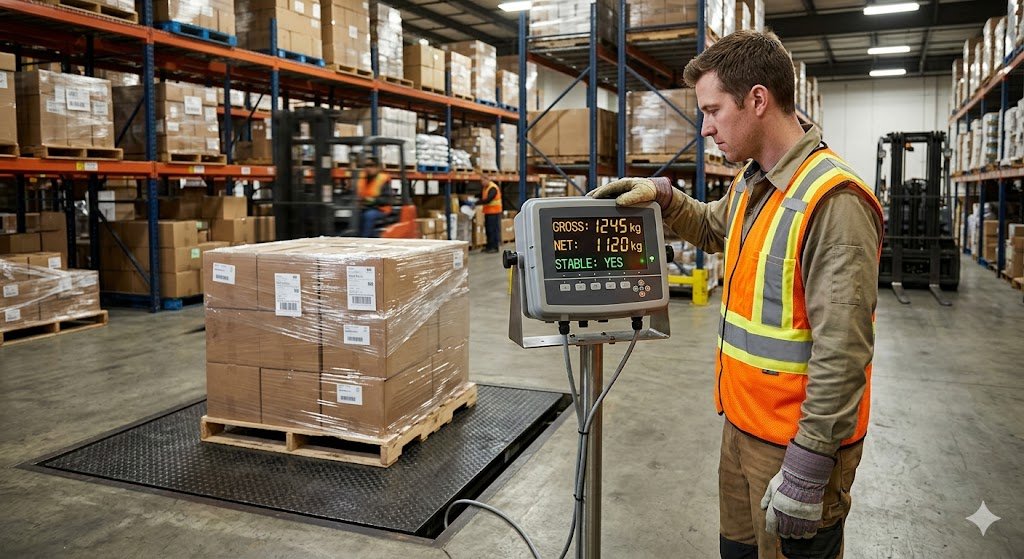
Reading a scale correctly sounds straightforward until the display shows a negative number, the reading will not stabilize, the gross and net weight disagree, or the indicator shows an error code nobody can explain. For warehouse operators new to industrial weighing equipment — or experienced operators who have only ever used one type of scale — understanding what every number and symbol on the display means is the difference between a reliable weight record and a systematic error that compounds across every transaction.
This guide covers everything a warehouse or industrial operator needs to know to read a scale correctly — display terminology, the difference between gross and net weight, when to use zero vs tare, how to identify a stable reading, what the common indicator symbols mean, and what to do when the reading looks wrong.
The Three Weight Values on a Scale Display
Most commercial and industrial scale displays show up to three weight values — sometimes simultaneously, sometimes toggled through a button press. Understanding which value is showing at any moment is the starting point for reading any scale correctly.
1. Gross weight is the total weight on the platform — the item plus any container, packaging, pallet, or support structure it is sitting on. Before any tare is applied, the scale displays gross weight. This is the number that reflects everything physically on the platform.
2. Tare weight is the stored weight of the container or packaging that has been subtracted from the gross weight. As confirmed by tare weight refers to the weight of a container, packaging, or any object that is not part of the product you want to measure. When you press the tare button with an empty container on the platform, the scale stores the container’s weight as the tare value. Hogentogler
3. Net weight is the weight of the contents alone — gross weight minus tare weight. Net weight is the weight of the product alone, excluding all packaging. Gross weight is the combined total of net weight plus tare weight. Carrier billing, customs declarations, and shipping documentation are based on gross weight. Product labels and commercial invoices are based on net weight. Scale Blog
The practical rule: When a scale displays a net weight, the container has been tared — the display shows what is inside the container. When a scale displays gross weight — no tare has been applied — the display shows everything on the platform, including the container.
What a Stable Reading Looks Like — and How to Identify One
A scale reading is only valid when it has stabilized. A reading that is still changing is not yet a valid measurement — it reflects a load that is still moving, vibrating, or settling.
Most digital scale indicators include a stability indicator — a small symbol, typically an asterisk (*), a checkmark (✓), or the word “STABLE” — that appears on the display when the reading has stopped changing and is within the indicator’s stability threshold. Do not record or act on a reading until the stability indicator is showing.
Why do readings become unstable:
All scales benefit from the use of an anti-vibration table. The degree to which that benefit is noticeable is proportional to the readability of the scale. The more sensitive the scale, the more significant the effect wind currents and vibrations will have. Scale Blog
In warehouse environments, instability commonly results from:
- Forklift vibration is transmitted through the floor to the scale platform
- A load placed off-center on the platform — eccentric loading causes the reading to settle slowly
- Air movement from dock doors, HVAC systems, or fans directed at the platform
- The load is still physically moving — a pallet that has just been set down and is still rocking
How long to wait: Most floor and bench scales in warehouse environments stabilize within 2–5 seconds of a load being placed correctly on the platform. A reading that has not stabilized within 10 seconds signals one of the problems above.
Zero vs Tare — The Two Buttons Most Operators Confuse
The Zero button should be pressed when the scale is a graduation or two away from zero, and you would like it to be perfectly on 0.00 before you start weighing. The Tare button is pressed when you have placed something on the scale — like a box, container, or empty truck — and you need to disregard the weight of that item. LeStallion
Using the wrong button in the wrong situation is one of the most common operator errors in commercial weighing — and it produces systematic errors that are often invisible until an audit or inspection reveals them.
Use ZERO when: The platform is completely empty, and the display shows a non-zero value — typically within a graduation or two of zero. This corrects for accumulated debris, temperature drift, or minor calibration shift since the last formal calibration.
Use TARE when: A container, pallet, bag, box, or any object that is not the item being measured is on the platform, and you want the display to show only the weight of the contents.
Never use ZERO with something on the platform. As confirmed by a zero key is used when there is no load applied to the pan. Simply put, the zero key should be used for any small adjustments that need to be made. Using zero with a container on the platform tells the scale to treat the container’s weight as a permanent correction to its baseline — corrupting all subsequent readings until the scale is recalibrated. Scale Blog
What happens when tare is active: If you place a container that weighs 50 g on the pan and press Tare, the balance will go from showing 50.00 g to 0.00 g. If you remove the container, the balance will read -50.00 g. The negative reading with the container removed is correct behavior — it confirms the tare is still active. Press tare again with the platform empty, or press zero, to clear the stored tare and return to normal operation. MNM Scales
For the complete guide to the tare function — including the four types of tare, how tare affects capacity, and the most common tare errors — see our article on what is the tare function on a scale.

Reading the Display: Common Symbols and What They Mean
Industrial scale indicators use a consistent set of symbols across most manufacturers. Knowing what each one means prevents misreading a valid measurement as an error — or missing a genuine problem.
| Symbol | What It Means |
|---|---|
| * or ✓ or STABLE | The reading has stabilized — this is a valid measurement |
| NET | The display is showing net weight — tare has been applied |
| GROSS | The display is showing total weight — no tare applied |
| T or TARE | A tare value is stored and active |
| — (negative value) | The tare stored is greater than the current platform load |
| HOLD | The last stable reading is frozen on the display |
| OL or OVER | Overload — the load on the platform exceeds the scale’s rated capacity |
| UL or UNDER | Underload — the platform is below the scale’s minimum weighing range |
| ERR | Error — the scale has detected a fault condition |
| CAL | Calibration mode is active |
| LO BATT | Battery power is low — on battery-operated portable scales |
The OL (overload) symbol requires immediate action. Remove the load immediately. An overloaded scale — even briefly — can permanently damage the load cell and shift the scale’s zero point. A scale that has been overloaded may continue to display readings while producing systematically inaccurate results. Have the scale inspected and recalibrated before returning it to service.
How to Read Gross, Net, and Tare Weight in a Receiving Workflow
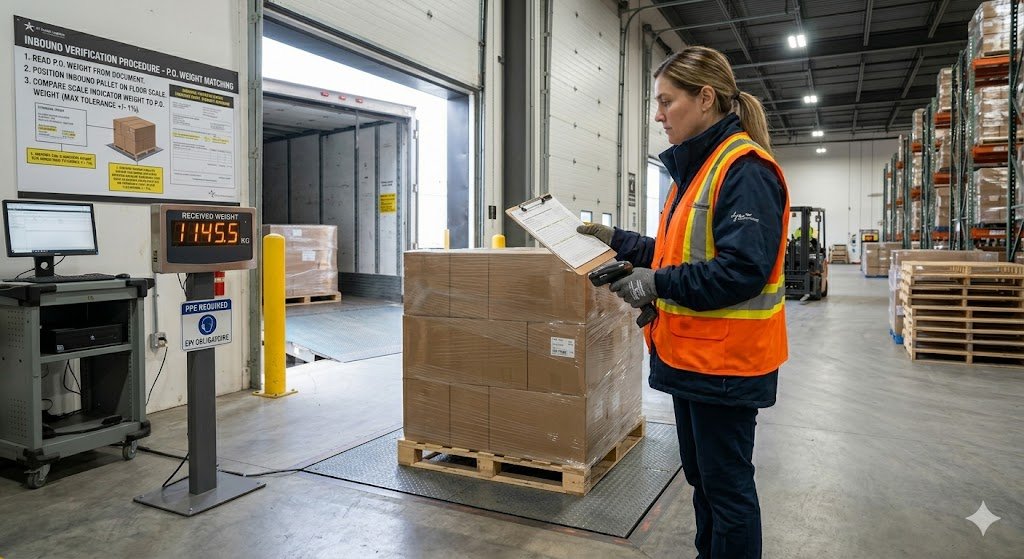
This is the most common warehouse scale reading scenario — verifying an inbound delivery against the declared weight on the purchase order.
Scenario: A pallet of goods arrives with a declared net weight of 800 lb on the delivery note. The pallet itself weighs approximately 45 lb.
Step 1 — Zero the scale. Confirm the platform is empty and the display reads exactly zero. If it does not, press Zero.
Step 2 — Weigh the full pallet as received. Place the loaded pallet on the scale platform. Wait for the stability indicator. Record the gross weight — for example, 847 lb.
Step 3 — Calculate net weight. Subtract the known pallet tare weight: 847 lb − 45 lb = 802 lb net weight.
Step 4 — Compare against the declared weight. 802 lb vs declared 800 lb — within normal variance for a commercial delivery. If the variance is significant — more than 1–2% — document the discrepancy before the carrier’s driver leaves.
Alternative using the preset tare function: If your indicator supports preset tare, enter the standard pallet weight (45 lb) as a preset tare before weighing. The display will show net weight directly — 802 lb — without manual subtraction. As confirmed by entering the known weight of the pallet in the system as a preset tare allows you to know the weight of the product with certainty, starting from the gross weight measurement. Scalewarehouseandmore
How to Read a Scale for Outbound Shipping
At a shipping packing station, the scale reading feeds directly into the shipping label. The workflow is slightly different from receiving because the container — the box — is tared, and the sealed package gross weight is what the carrier measures.
Step 1 — Zero the scale. Empty platform, display reads zero. Press Zero if needed.
Step 2 — Tare the empty box. Place the empty shipping box on the scale platform. Wait for stability. Press Tare. The display resets to 0.00.
Step 3 — Pack the item. Add the item, packing materials, and seal the box while it remains on the platform. The display shows the net weight of the contents and packaging combined — this is the weight the carrier will measure.
Step 4 — Read the net weight. The stable NET reading on the display is the package weight. If the scale is connected to shipping software via USB or Bluetooth, this reading populates the label automatically.
Step 5 — Remove the package. The display shows a negative value equal to the tared box weight. This is correct. Press Tare or Zero to clear before the next package.
Reading Scale Units — Switching Between lb, kg, and oz
Most commercial and industrial scales display weight in multiple units — lb, kg, oz, and g, depending on the model. The unit currently displayed appears as a symbol on the display: lb for pounds, kg for kilograms, oz for ounces, g for grams.
Pressing the UNIT button cycles through the available units. The reading changes to reflect the conversion — the same physical weight expressed in the selected unit.
The error to avoid: Recording the number on the display without the unit. A reading of 15.4 means nothing without knowing whether it is lb, kg, or oz. In a warehouse environment where shipping labels, purchase orders, and inventory records all specify a unit, reading the number without the unit produces a conversion error that may not be discovered until the shipment is challenged.
Always confirm the unit symbol on the display matches the unit required by the transaction before recording the weight. Some indicators allow the operator to toggle between pounds and kilograms. If the display unit does not match your record-keeping system, use our weight unit converter to convert before logging the reading.
What to Do When the Reading Looks Wrong
A scale reading that does not match expectations is not always a calibration problem. Three questions identify the most likely cause before escalating to a service call.
Is the platform level? A scale that is not level produces a systematic low reading because the load cell measures only the vertical component of the applied force. Check the bubble level indicator and adjust the leveling feet if needed. A scale that consistently loses level despite adjustment may indicate an unstable floor surface or damaged leveling feet.
Is something touching the platform? Cables, walls, upright posts, or debris wedged between the platform and the frame create a secondary load path that bypasses the load cells — producing a systematic low reading. Clear the platform area and confirm nothing is in contact with the platform structure.
Was the tare cleared correctly? A scale with an active tare from the previous weighing session will read incorrectly for any subsequent load where the operator does not re-tare. Confirm the display shows GROSS weight or that the tare value displayed is the expected container weight for the current application.
If none of these resolve the discrepancy, request a formal calibration check using certified reference weights before returning the scale to service.
Reading a Scale in Count Mode
Many bench scales and floor scales include a counting mode that displays piece count rather than — or in addition to — weight. Reading a scale in count mode requires understanding one additional concept: the Average Piece Weight (APW).
How the count mode works: A known sample quantity is placed on the platform and entered into the scale. The scale divides the sample weight by the quantity to calculate the APW. Subsequent loads are then displayed as a count — the total weight divided by the APW.
What the count display shows: The number on the display in count mode is the estimated piece count — not a weight. The actual weight of the load is still available, typically by pressing the UNIT or MODE button to toggle between count and weight display.
The reading to verify: Before acting on a count display, confirm the APW is correct for the item being counted. An APW established from too small a sample or from a different item type produces inaccurate counts that look correct on the display. For the complete guide to counting scale operation, see our article on how counting scales work and when to use one.
Scale Reading Checklist for Warehouse Operators
Use this checklist at the start of every shift and before any critical weighing event.
- The platform is clean — no debris, residual material, or foreign objects on the weighing surface
- Scale is level — bubble level indicator is centered
- Display reads zero with platform empty — press Zero if not
- No active tare from previous session — display shows GROSS or tare is cleared
- Unit of measure matches the required transaction unit — lb, kg, or oz confirmed
- The stability indicator is visible and functioning
- Scale is within its calibration period — check the calibration sticker on the indicator housing
- No OL or ERR symbols on display before any load is applied
FAQs
What is the difference between gross weight and net weight on a scale?
Gross weight is the total weight on the platform — item plus container, packaging, and pallet. Net weight is the weight of the contents alone, after the container weight has been subtracted using the tare function. Carrier billing and shipping documentation use gross weight. Product labels and commercial invoices use net weight.
Why is my scale showing a negative number?
A negative reading means the tare function is active and the current platform load is less than the stored tare value. This typically occurs when a container is tared and then removed from the platform. Press the tare button again with the platform empty, or press zero, to clear the stored tare and return the display to normal zero.
What does the stability indicator mean on a scale display?
The stability indicator — typically an asterisk, checkmark, or the word STABLE — confirms that the reading has stopped changing and is within the scale’s stability threshold. Only record or act on a scale reading when the stability indicator is showing. A reading without the stability indicator is not yet a valid measurement.
When should I press zero vs tare on a scale?
Press Zero when the platform is completely empty, and the display shows a non-zero value — to correct for drift or accumulated offset. Press Tare when a container is on the platform, and you want the display to show only the weight of the contents. Never press Zero with something on the platform — this corrupts the scale’s baseline and produces inaccurate readings until recalibration.
What does OL mean on a scale display?
OL means overload — the weight on the platform exceeds the scale’s rated capacity. Remove the load immediately. Operating a scale above its rated capacity, even briefly, can permanently damage the load cell. Have the scale inspected and recalibrated before returning it to service if an overload event occurred.
How do I know if my scale reading is accurate?
Place a certified test weight of known mass on the platform and confirm the reading matches the weight’s certified value within the scale’s specified accuracy tolerance. If the reading deviates significantly from the certified weight, the scale requires calibration by an accredited service provider before returning to commercial use.
Conclusion
Reading a scale correctly is a combination of understanding what the display is showing — gross, net, or tare — and recognising the conditions that produce a valid, stable, accurate measurement versus one that is still settling, incorrectly configured, or reflecting an error condition.
The most common reading errors in warehouse environments are not hardware failures — they are operator errors: using zero when tare was needed, recording a reading before the stability indicator appeared, or not recognising that an active tare from a previous session is affecting the current display. The checklist and the symbol reference in this article address every one of these errors systematically.
For the complete guide to the tare function specifically — including all four tare types and how tare affects the scale’s available capacity — see our article on what is the tare function on a scale. For guidance on the calibration process that keeps scale readings accurate over time, see our article on warehouse scale calibration.